Help centre / Start here
Getting started
Create your store, add your first product, connect payments and take your first order.
BazaarSaaS gives you a complete online store — products, checkout, UPI and cash on delivery, GST invoices, shipping and WhatsApp updates — that you run from one admin, in English or Hindi.
1. Create your store
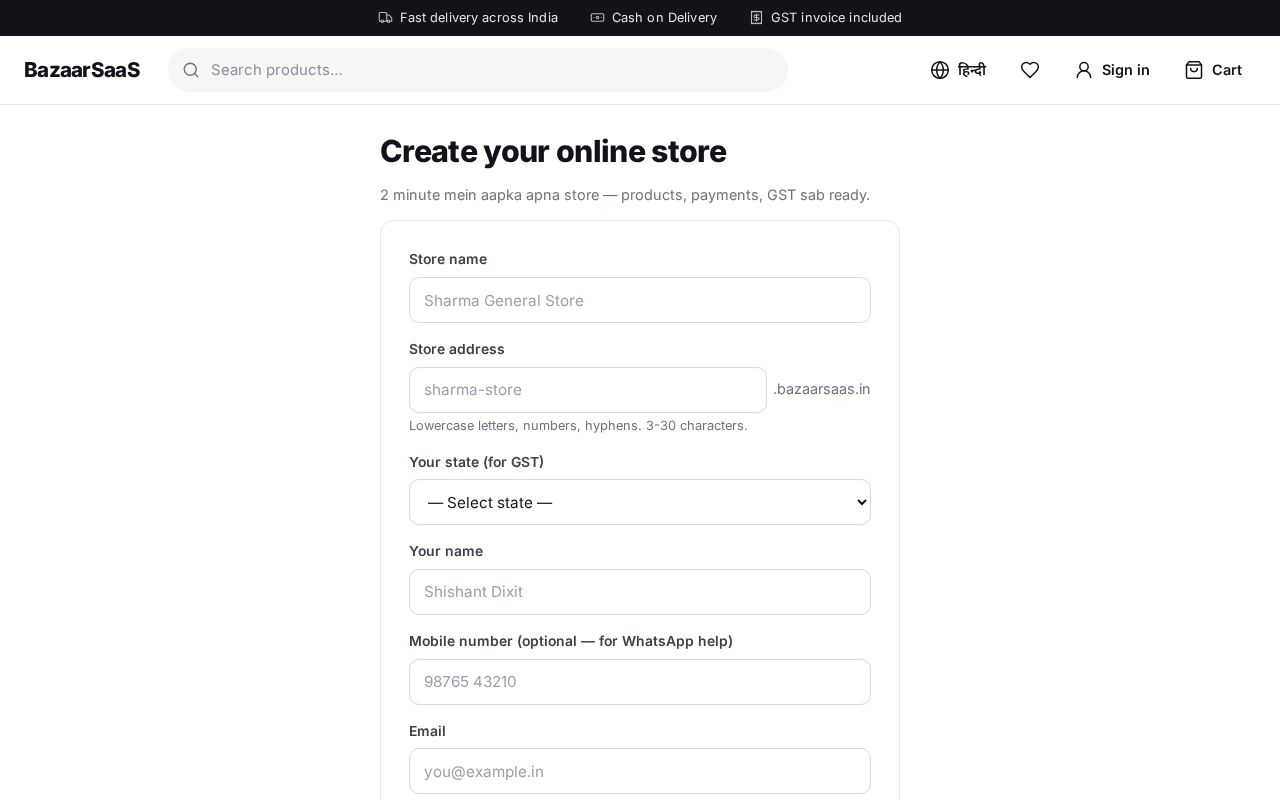
- Open Start your store free (
/signup). - Fill in your store name, the store address you want (lower-case letters, numbers and hyphens —
for example
meera-sarees), your state (it decides CGST + SGST vs IGST on invoices), your name, mobile, email and a password. - You land in your admin straight away. Check your email and click the link to verify your address — that keeps your account recoverable.
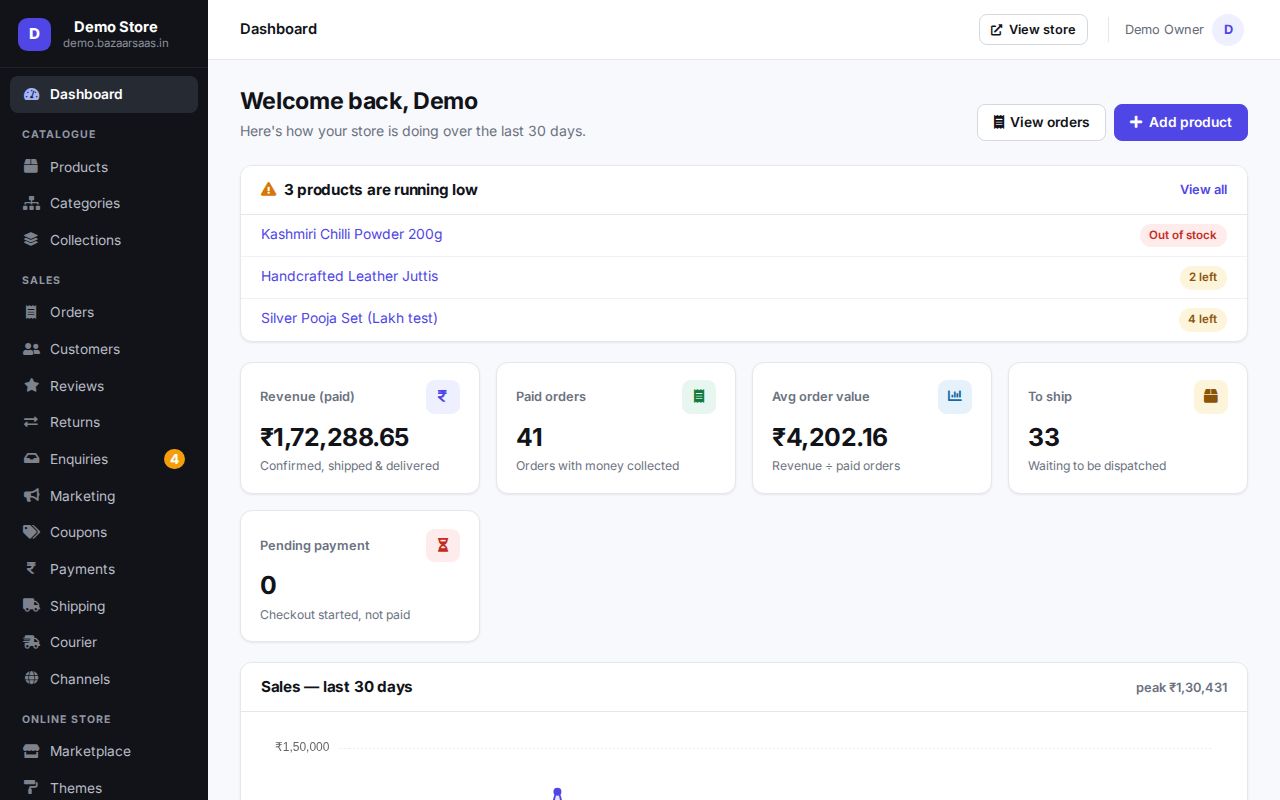
Your store is live at its address from the first minute. Until you add products it shows an empty shop.
2. Add your first product
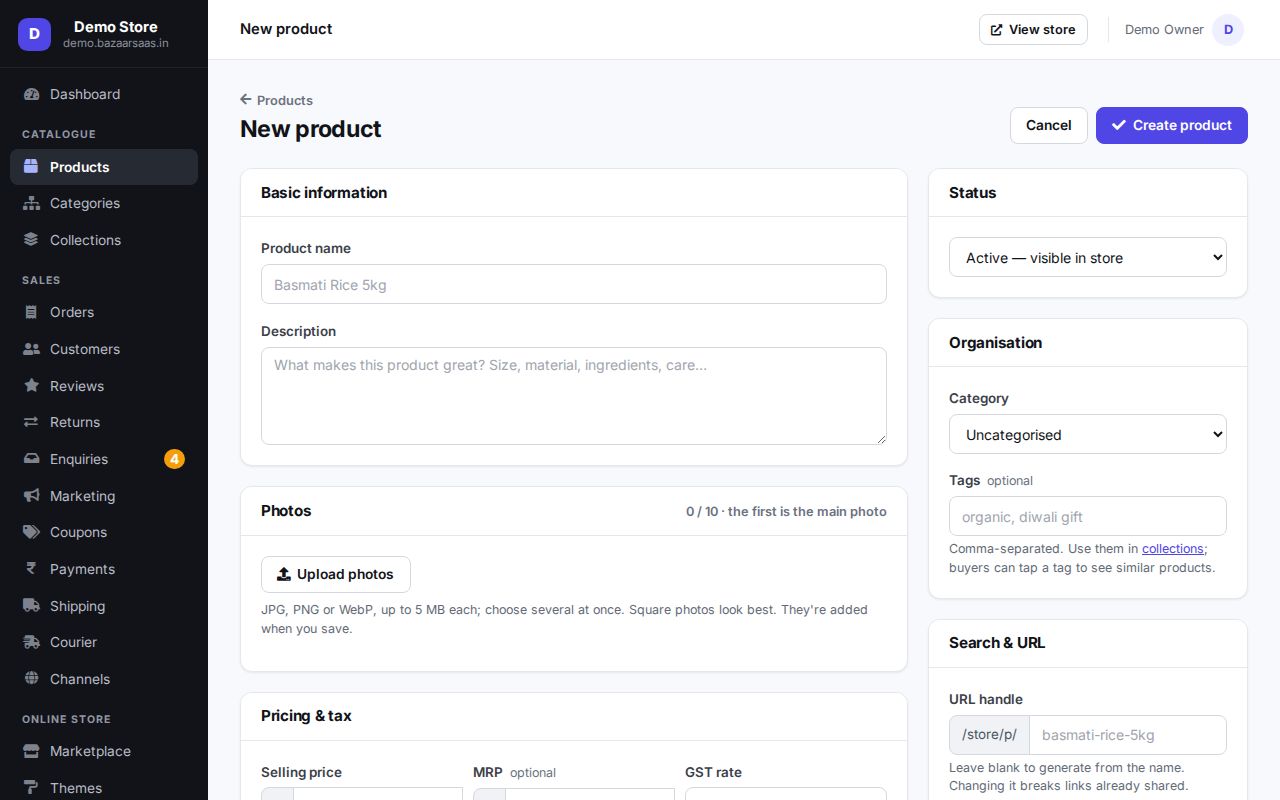
Go to Products → Add product and fill in the name, price (including GST), HSN code, GST rate, stock and at least one photo. Products with sizes or colours get variants — see Products. Have a spreadsheet already? Use Products → Import instead.
3. Set up how you get paid
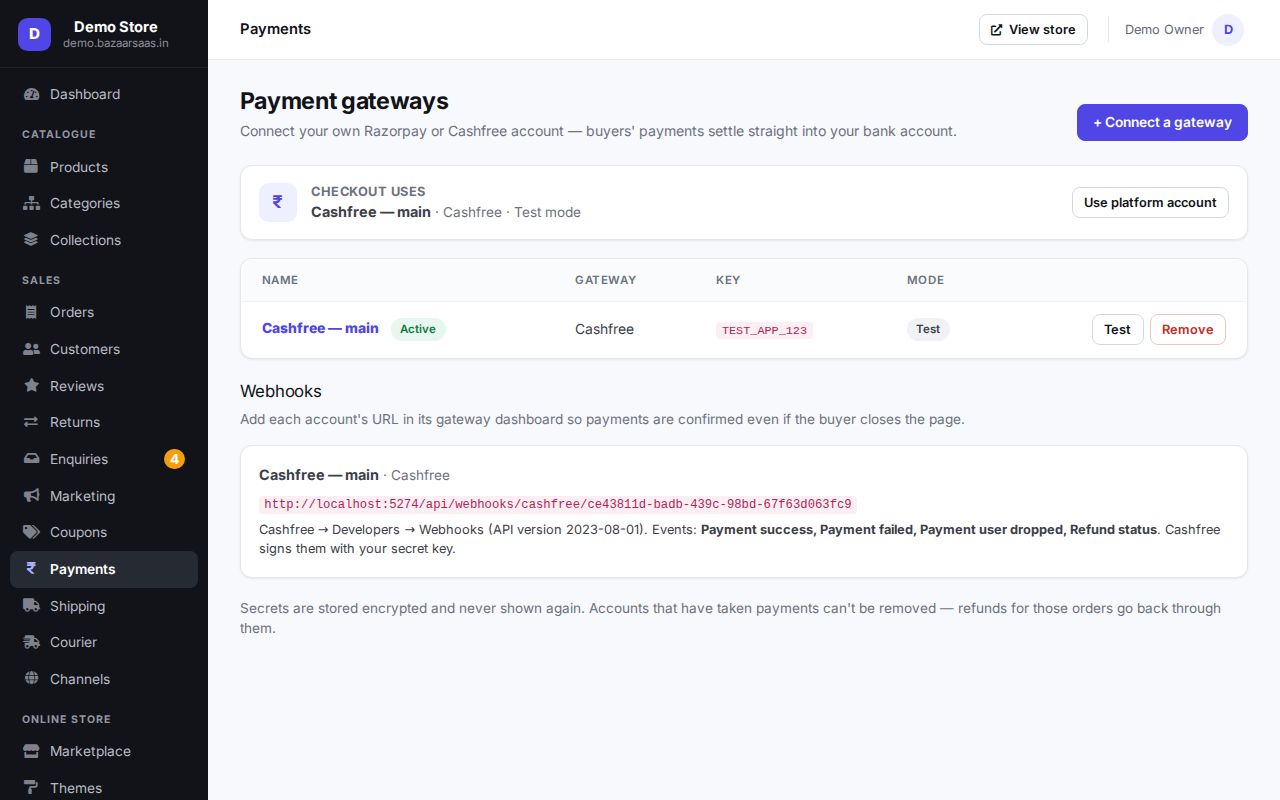
- Online payments: connect your own Razorpay or Cashfree account in Payments — see Payments.
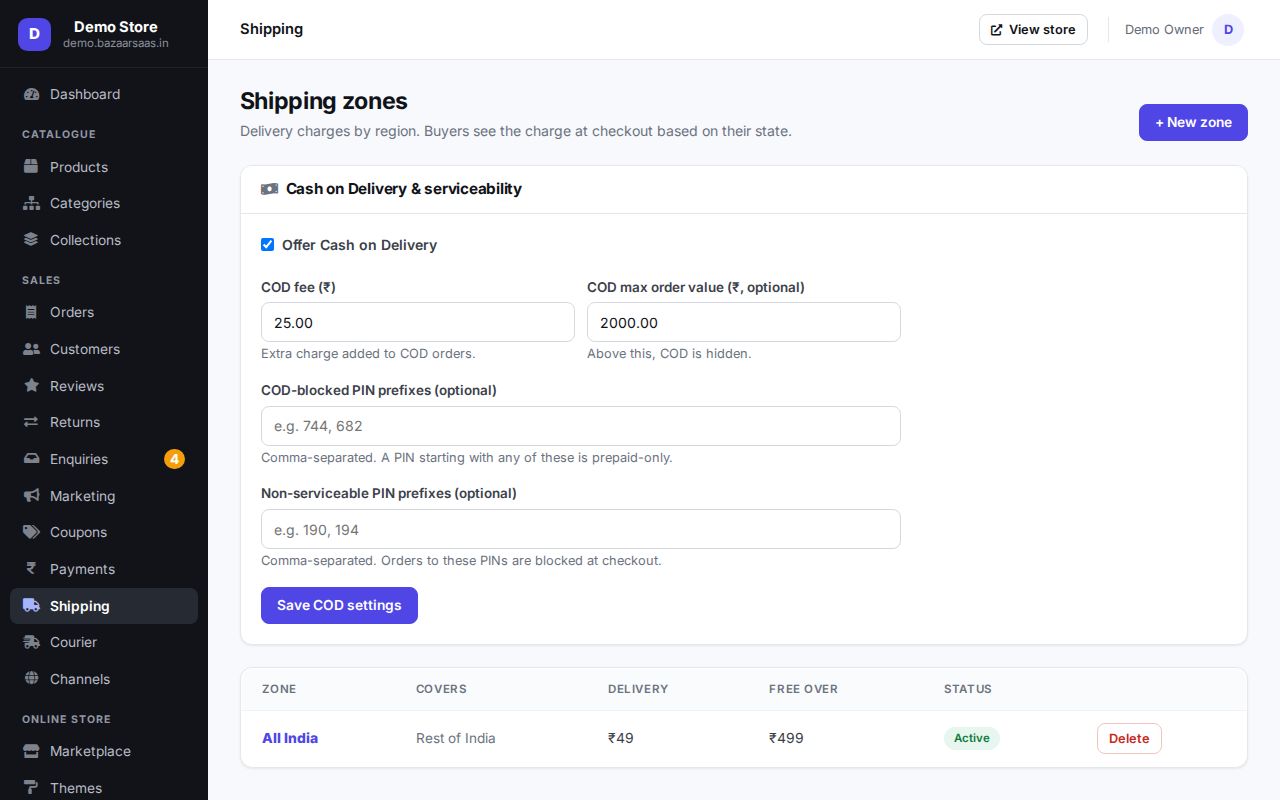
- Cash on delivery: switch it on and set your COD fee in Shipping.
4. Set delivery charges
In Shipping, add zones (groups of states) with a delivery charge and an optional free-delivery value. Connect a courier in Courier when you're ready to print labels — see Shipping & COD.
5. Make it look like yours
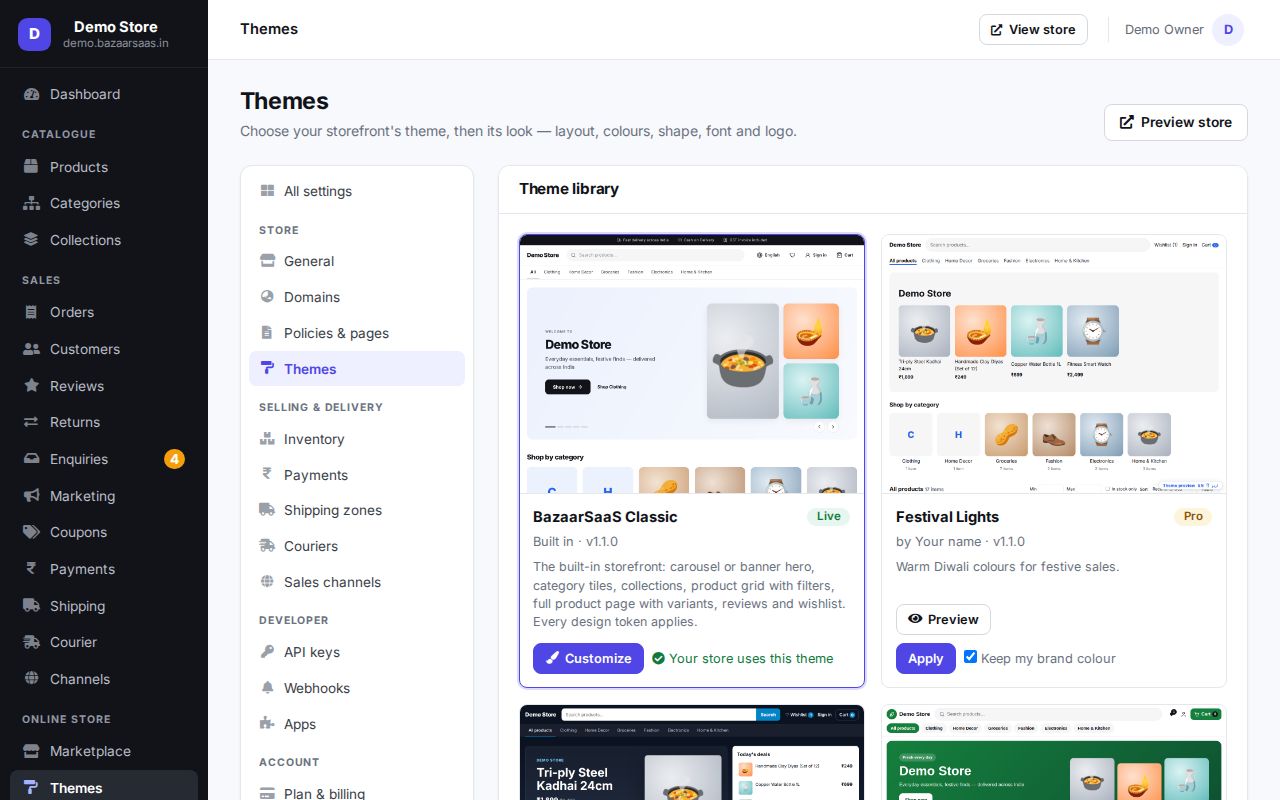
Pick a theme in Themes, then Customize colours, fonts and sections. See Themes & design.
6. Share and sell
Share your store link on WhatsApp, Instagram and Facebook. New orders appear in Orders; you and the buyer get notified. Next: Orders, returns & refunds.
Tip: the admin speaks Hindi too — use the language switch at the top of any admin page.
Help on every page: the ? Help button at the top of the admin opens the guide for the page you're on, in the language your admin is in.
Still stuck? Talk to us — we'll help you set it up. Talk to us